Australian developers
Preparing architectural renders for realestate.com.au and Domain
Prepare listing renders around the actual upload route and the space where buyers will see them. Ask the selling agent which portal product and CRM they use, confirm its current file requirements, then supply approved images with deliberate crops and a clear order. Keep the full-resolution masters separate from the files prepared for upload.
For Australian off-the-plan campaigns, this conversation belongs in the original image brief. A wide website banner, a portal thumbnail and a printed brochure can all use the same scene, but they may need different compositions or exports. Finding that out after approval can leave the building cropped awkwardly.
Which image requirements should you use?
The figures below were checked on 29 October 2026. They describe the named sources and routes, not a universal specification for every property advertising product. Ask the agent to confirm the requirements for the account and feed that will publish your project.
| Route or product | Published guidance | Handover implication |
|---|---|---|
| realestate.com.au listing help | Recommended 2000 × 1500 pixels, or 4:3. JPEG, PNG and static GIF are listed, with RGB colour and a 20 MB image limit. | Confirm the listing uses this guidance before export. GIF has additional floorplan conditions. |
| REA Listing Upload API | Its image section specifies a 60 MB limit and recommends 1920 × 1440 for 4:3 or 1920 × 1080 for 16:9. | The API and the listing help page publish different limits. Your CRM may impose its own constraints. |
| Domain listing help | Domain states that a listing can contain up to 100 images. | Capacity is not a recommended image count. Confirm dimensions, format and size with the agent's current upload route. |
Sources: REA listing image requirements, REA upload API specifications and Domain image allowance.
We have not applied an Allhomes specification, agency-profile specification or old project-advertising PDF to all Domain listings. Those are different contexts. For a development campaign, record whether the destination is an individual property listing, a project page or another advertising placement before treating any size as settled.
Agree a delivery brief with the agent
The agent or campaign manager should nominate the person who will upload the files. That person can confirm what the software accepts and how updates flow through to each portal. Send them the proposed specification while camera framing can still be adjusted.
| Decision | What to record |
|---|---|
| Destination | Portal, product and individual dwelling or project-level placement. |
| Upload method | Direct entry or the named agency CRM/feed. |
| Image shape | Required ratio and any separate thumbnail or banner crop. |
| Export | Pixel dimensions, accepted format, colour profile and file-size ceiling. |
| Image order | The lead image and the purpose of each following view. |
| Image wording | Where the agent will identify renders, inclusions and any required qualification. |
| Approval | Who approves the visuals, listing copy and final uploaded preview. |
Save these decisions with the render brief. If two portals need different exports, label the folders by destination rather than relying on someone to remember which file goes where. Avoid sending a mixture of draft and final images in the same delivery folder.
Choose the lead image at thumbnail size
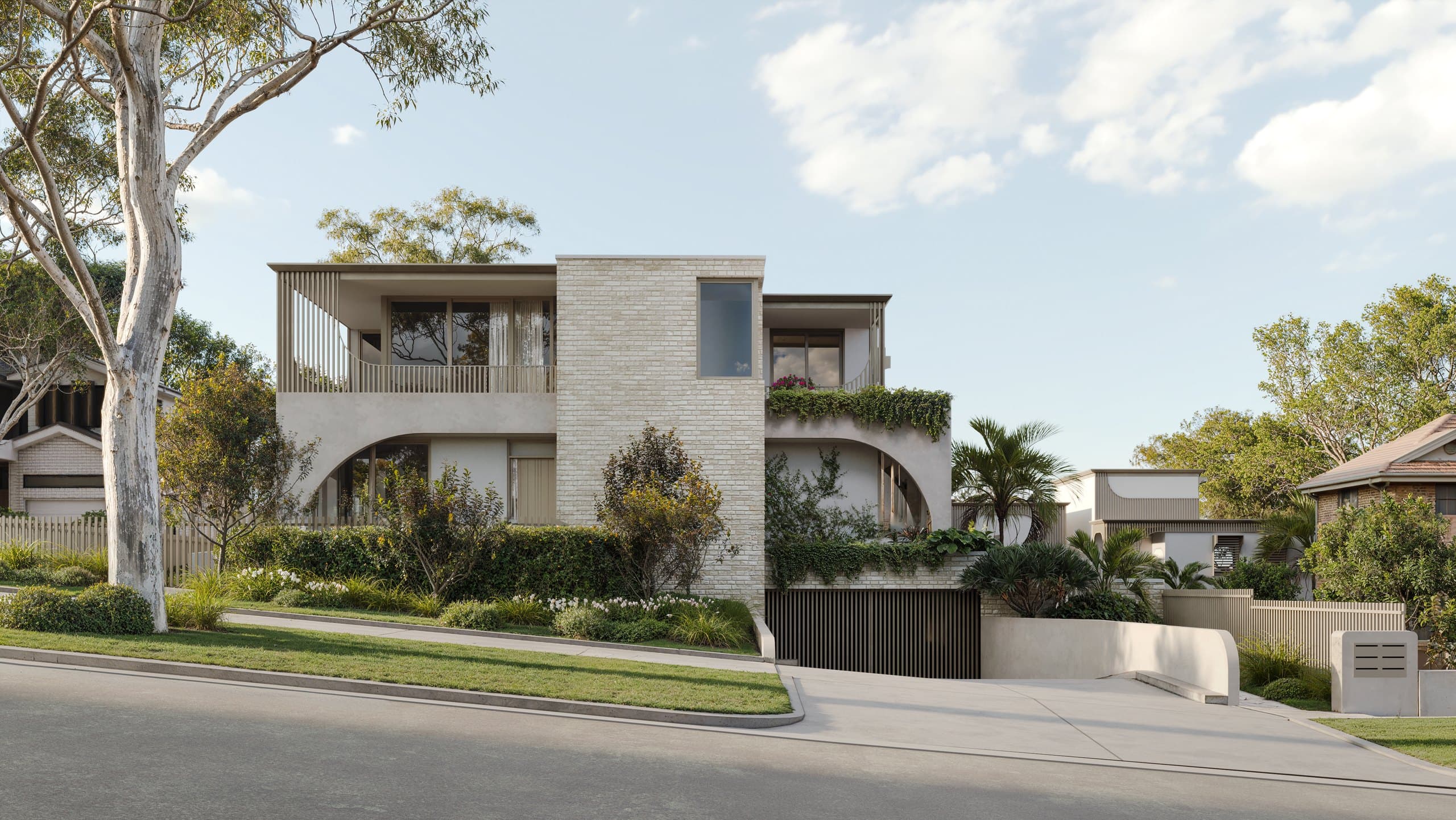
A portal lead image needs a clear subject when it is small. View the proposed crop on a phone and check whether the building, room or outdoor space is still recognisable. Small details in stone or planting are useful when the image is opened, but they cannot carry the first impression alone.
For a street view, leave enough space around the facade to survive the intended crop. Check whether trees, parked vehicles or the image edge obscure the entry. For an interior, check that the crop still explains the room rather than leaving only an island bench and fragments of furniture.
The hero-render selection guide compares street, aerial, interior and outdoor choices. Use it to decide what your first image needs to communicate before asking for variants.
What does a useful image sequence look like?
Start with the image that introduces the property, then answer the next buyer questions. A small residential set might move from arrival to main living space, kitchen, outdoor area and bathroom. This is an editorial example, not a portal requirement or a guarantee of a better response.
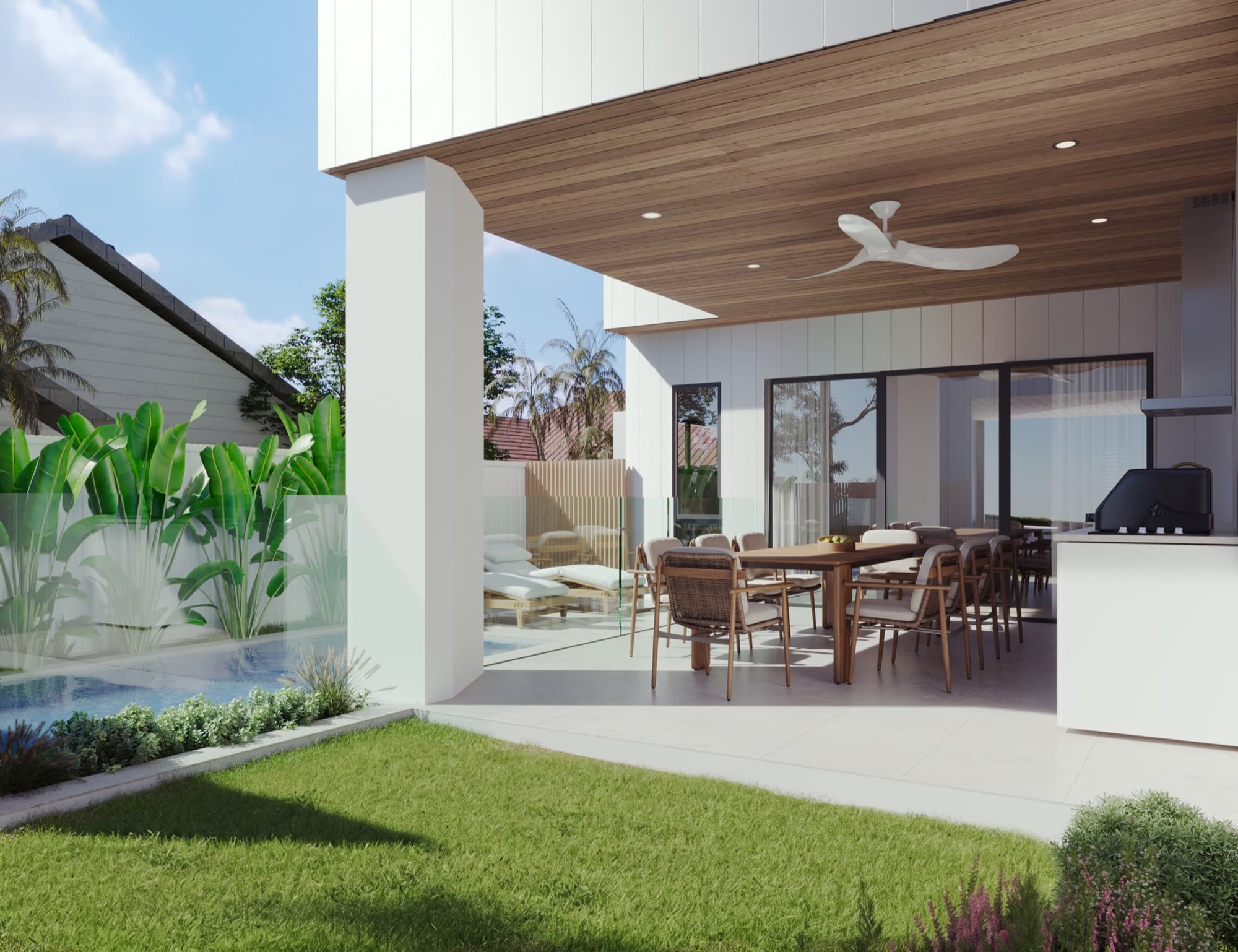
The Dudley Avenue project in Caringbah, Sydney provides five distinct views: street frontage, pool courtyard, kitchen, living/dining and bathroom. Those assets cover different aspects of the development. They do not need several near-identical facade crops to create a coherent sequence.
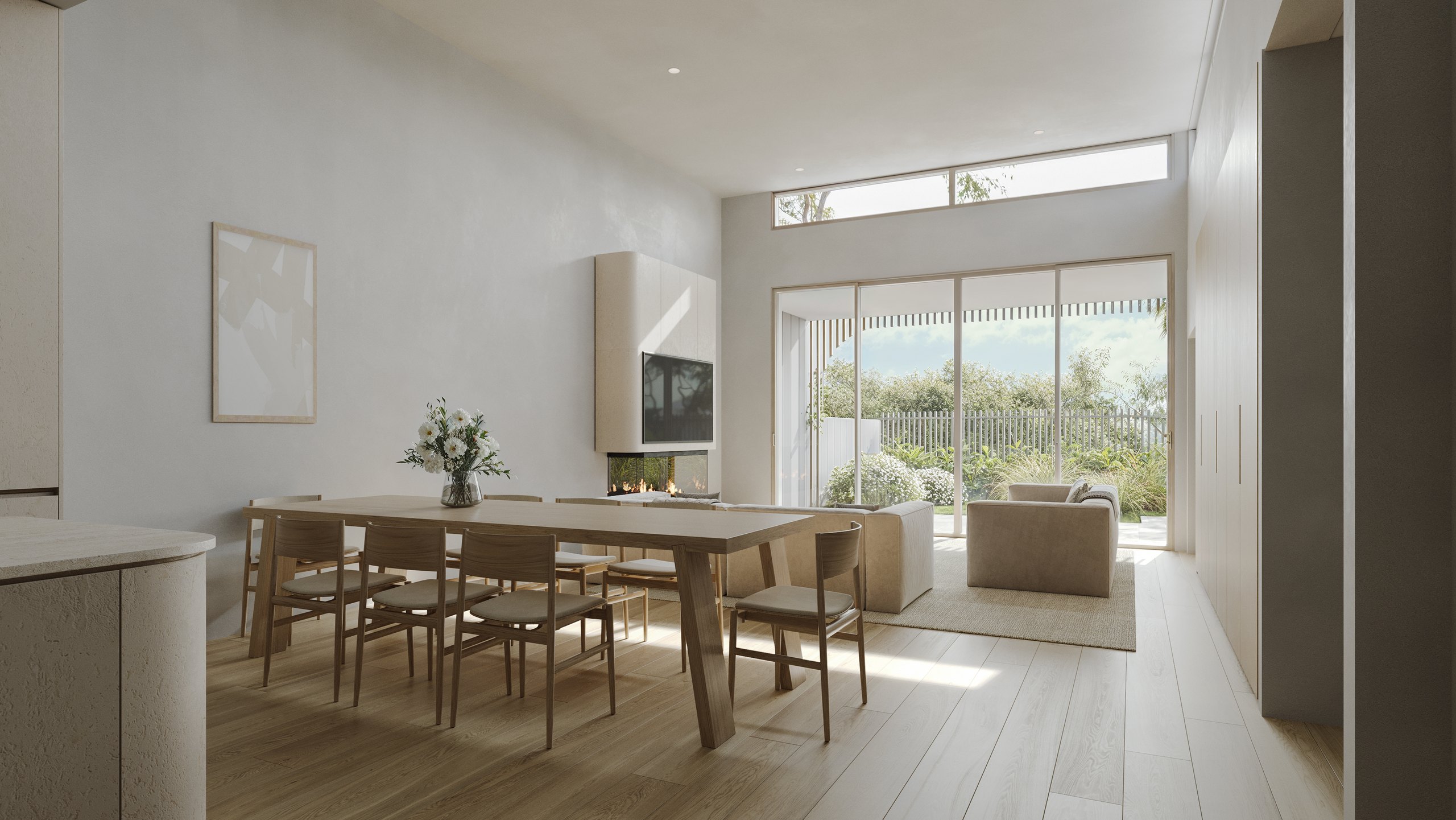
For a larger project, group images so buyers can understand which residence, dwelling type or shared space they are seeing. Do not place images from different layouts together without a clear description. A strong-looking kitchen from one type should not silently become the kitchen for every home in the listing.
Keep portal images separate from campaign artwork
A brochure cover or social advertisement may contain logos, headlines and a sales message. A listing image has its own content rules. The current REA help page excludes several types of overlays, contact information, collages and excessive agency branding. It also restricts people or pets unless unavoidable. Check proposed lifestyle figures against that guidance before approving a portal version. REA content rules.
Ask the agent where descriptions and any necessary qualifications should appear. Do not assume a disclaimer added to an image resolves every issue, or remove required information simply to produce a cleaner composition. The approved visual, accompanying copy and destination rules need to work together.
Keep an unbranded image export alongside separately approved campaign artwork. A screenshot of a brochure page is a poor substitute for the original render and may carry text or formatting that does not belong in a listing gallery.
How should you crop an architectural render?
Crop to the agreed ratio without stretching the image. Check the roof, boundaries, balconies and foreground after cropping, especially where the original composition was designed around a wider frame. A small trim can change which parts of the development appear connected.
Where a crop cannot retain the essential content, ask whether the camera needs a different framing. Simply shrinking the building into a large border may weaken the image at thumbnail size. Widening the lens indiscriminately can also change the apparent proportions of an interior. Solve the composition in the scene when the approved crop genuinely needs another view.
Keep the approved master intact. Export each crop as a named derivative so the team can return to the original for a different use. If the same image appears on the project website, check that its own responsive crop remains suitable there too.
Check pixels, compression and colour
Pixel dimensions describe the digital image available to the portal. Changing only a DPI label does not create more image detail. Start with a suitable master, export to the agreed dimensions and inspect the actual delivered file after compression.
Look at window frames, balcony rails, fine planting and material transitions. Heavy compression can damage those edges or create blotchy surfaces. The aim is a clean export within the destination's requirements, not the largest file the system can technically accept.
Use the agreed RGB workflow for digital delivery and check the export on more than one normal screen. Keep print production requirements with the brochure team rather than sending a print-specific file by default. Our property brochure checklist covers the separate print handover.
What changes when the campaign includes video?
Confirm how the agent supplies the video to each destination. Domain's current instructions use a video link rather than a direct video-file upload, recommend YouTube or Vimeo, and tell users of CRM-created listings to make updates through the CRM. Follow the current instructions for the accepted link format. Domain video instructions.
Give the agent the approved film, an appropriate poster image and the agreed hosting link once available. Test the published playback on mobile, including whether the opening makes sense without sound. A page containing a film is not necessarily the same thing as the video URL required by the listing system.
If you are still choosing the film type, see our build-up animation guide and walkthrough versus stills comparison.
Final handover checklist
- Confirm the exported views represent the correct dwelling or project stage.
- Separate approved masters, portal exports and campaign artwork.
- Give each file a project name, view name, crop and version.
- Supply the intended image order in a short delivery note.
- Check dimensions, colour, compression and the current upload limits.
- Have the agent inspect the actual listing preview on desktop and mobile.
- Record any replacement files so superseded images are removed everywhere.
Frequently asked questions
Can I use the same render on both portals?
Often the same approved scene can support both destinations, but confirm the required exports and crops. Keep a master file and prepare the variants the agent's upload workflow needs.
Should I upload every render the studio delivers?
Use the images that help explain the listed property. Repeated angles can make the sequence longer without adding information. The portal's maximum allowance is a capacity limit, not a target.
Can the render studio publish the listing for me?
The visual brief should identify who handles publishing and approval. Producing renders does not by itself include portal account access or listing management. Agree the handover with your selling agent and studio.
Do these specifications stay the same?
No. Portals and CRMs can change their requirements. Recheck the linked official sources and the actual upload route before a new campaign or a later replacement export.

Plan your campaign image delivery
Share the views and destinations your agent needs, including any portal, website and brochure crops.
Discuss your project